how do i log in to my ar 32 account
Go to the AR 32 patient portal login page and sign in with your registered mobile number or email plus your password. If it is your first time, choose "Setup Password" and enter your Patient ID with your mobile or email. New patients register first and wait for front-desk approval. There is no OTP login, so the password is your only key.
Signing in needs three things: the right page, the mobile number or email we have on your file, and a password. Almost every login problem we hear about comes from one of these three not matching what the clinic holds.
The normal sign-in
- Open the AR 32 Patient Portal login page.
- Enter the mobile number or email you gave at registration. Use the 10-digit mobile number exactly as it is on your file.
- Enter your password and sign in.
There is no OTP. The portal will not text you a code; it relies on your password alone. That is one more reason to choose a password nobody at home or at work could guess, and not your date of birth or vehicle number.
First time, with an existing file
If you have been treated at any of our clinics but never logged in, you don't have a password yet. Choose "First Time User? Setup Password". You will need:
- your Patient ID, in a format like P2026-0001
- the mobile number or email on your file
- a new password of at least 6 characters
If you can't find your Patient ID, call reception on 8484 990 678 rather than guessing. A practical tip: make the password 8 characters or longer from day one, because the password reset screen asks for at least 8, and you'll avoid a second change later.
Brand-new patient
Choose "New Patient? Register Here" and complete the registration form. Every self-registration is now checked by our front desk before the account exists. Until then you'll see a message that the front desk is confirming it and that your portal opens as soon as they do. If it is still waiting the next day, give us a call.
When the login fails
- "Wrong password", but you're sure it's right: check whether you are using the mobile number or email we actually have on file. A new SIM or a changed email address won't match until your record is updated, so ask reception.
- "This number is shared. Who is signing in?" This appears when two family members on the same mobile number chose the same password. Pick your own name. Better still, give each person a different password.
- Someone else's file opens: on a shared number, the password decides whose file you see. You have typed another family member's password. Log out and use your own.
- Forgotten password: use the Forgot Password page with your registered email. The reset link expires in one hour.
- Registered long ago with an old email: the reset works by email, so if you no longer use that address, call reception for help first.
Signing in on a shared or office computer
If you check your file from a laptop in a Kharadi IT park office or a computer everyone at home uses, don't let the browser save your password, and always tap Logout when you finish. Your clinical notes, medical history and bills are inside, and anyone who opens the browser after you could see them.
Want this looked at properly?
Kharadi runs late. Reception will tell you honestly whether you need an appointment yet.
Book — Rs 500 ☎ 8484990678Related questions
Read the full guide
Complete articles from our dental health blog, written by our MDS panel.
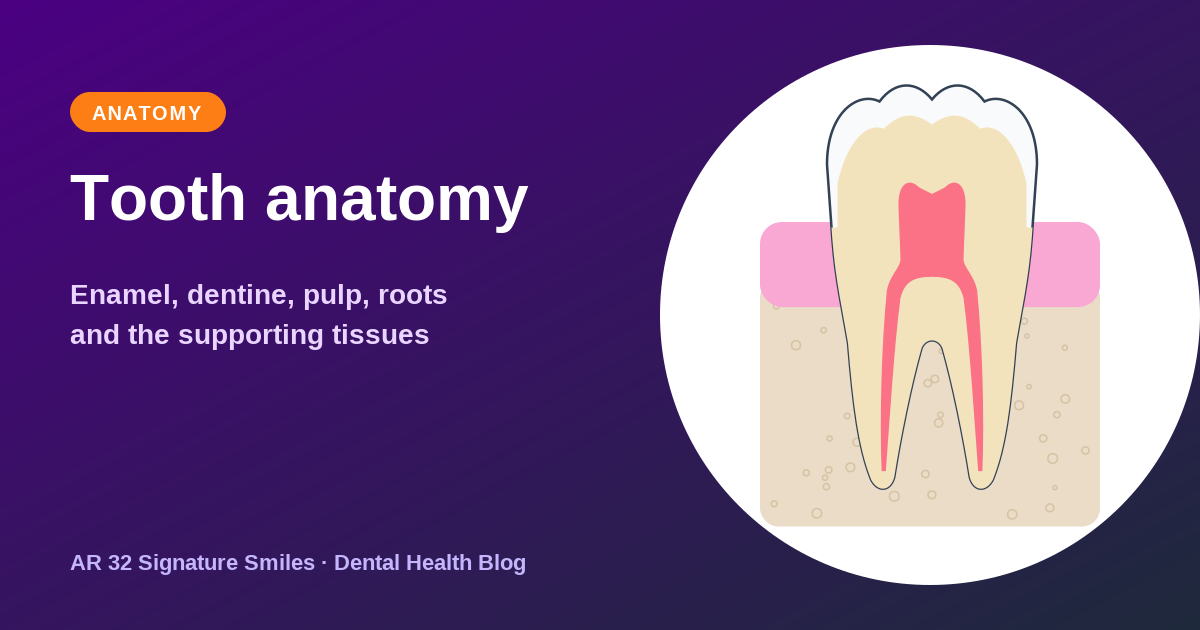 Teeth: anatomy and scienceTooth anatomy5 min read
 Oral health and general healthDiabetes and oral health5 min read
 Dental emergenciesSevere toothache6 min read